
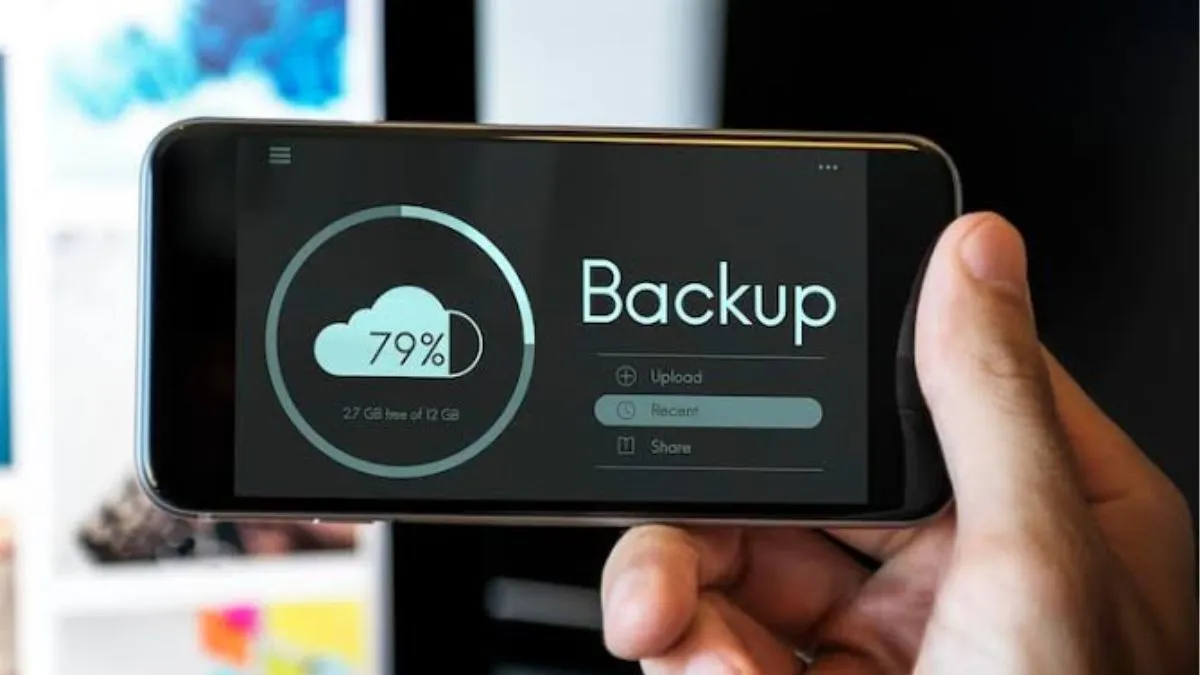
If you are an iPhone user, you have probably faced the storage issue at least once. Running out of storage is certainly annoying, especially when your photos and videos take up the most space. But you do not have to throw away your device, and you need not delete your favourite memories just to make more room for apps or files you need.
If you are trying to clear up storage without actually losing anything important, there are plenty of tricks to try—like optimising iCloud Photos, clearing out duplicates, offloading unused apps, and getting rid of random data that piles up.
Start by seeing what’s actually taking up space
Before you go for deleting or moving anything, check what is eating up your iPhone’s storage. Apple makes this easy—they break down how much space you are using on apps, photos, media, and other stuff.
- Just go to Settings
- Tap General
- Then iPhone Storage
- Take a look at the list.
Usually, you will see what is taking up the most space right away. If it is photos and videos, then do not panic – as you have got options other than nuking your camera roll.
Optimise iCloud Photos to save space
A quick fix for bulky photo libraries is to use iCloud Photos, but make sure the “Optimise iPhone Storage” option is on. Here’s how to set it up:
- Head to Settings
- Tap your name at the top.
- Go to iCloud.
- Then tap Photos.
- Flip on “Sync this iPhone”.
- Then choose “Optimize iPhone Storage.”
- Done.
How does this help the user?
iPhone owners will notice that the full-resolution photos and videos go to iCloud directly, while your iPhone holds smaller versions to save space. If you ever need the original, you can pull it down from iCloud anytime.
iCloud: Things to remember
Just remember that your iCloud storage is not the same as your actual iPhone storage. Apple gives you 5GB free, but if you need more, then you will have to upgrade to an iCloud+ plan. You can always check how much iCloud space you have in Settings under your Apple ID and iCloud.
Clear out duplicate photos and videos
Duplicates sneak in fast, especially if you are always saving friends’ pics from WhatsApp, AirDrop, or other apps. It adds up.
Luckily, the Photos app can now spot duplicates for you.
- Go to Photos
- Tap ‘Collections’.
- Then scroll down to ‘Utilities’.
- Open Duplicates
You can review what’s there and tap ‘Merge’ on anything you do not actually need twice. This keeps your best versions and all important info but trims out unnecessary copies.
Remove apps you do not use to free up your iPhone’s space.
It is not just photos that fill up your storage, but some heavy files – big apps and games can take up a lot of space too.
Instead of deleting them (and all your app data with them), just offload the app. This removes the app itself from your iPhone but keeps its data, so if you reinstall later, everything’s still there.
- To do this, go to Settings
- General
- iPhone Storage
- Look for the apps you barely use
- Tap on one and choose “Offload App.”
- The app will stick around on your home screen with a little cloud icon.
Clean out old files and downloads.
Sometimes, it is not the obvious stuff eating your storage—it’s old downloads or random documents you forgot about.
Check the storage recommendations in:
- Settings
- General
- iPhone Storage for easy wins.
You can also open the Files app to track down documents and downloads you do not use anymore. And do not forget about messaging and social media apps like WhatsApp or Telegram—they can build up loads of photos, videos, and other junk from chats.
Use a computer or external drive to save photos and videos
If you have too many pictures to stalk up and store and do not want to pay for extra iCloud storage, then there is another way easy way to clear space: by transferring those files to your computer or an external drive.
Plug your iPhone into your Mac or PC, copy everything you want to save, and then, once you’re sure it’s all backed up, delete those files from your phone. This is especially useful if you like keeping an offline backup of all your old pictures and videos.
Keep an eye on your storage
If you keep getting “iPhone Storage Almost Full” pop-ups, it will certainly be a good idea to check your storage now and then – before it gets out of hand.
Look beyond just photos and check which apps are huge, clear out media you have already watched or listened to, and pay attention to attachments in your chats.
iPhone storage almost full? Tips to free up space without losing photos, videos
iPhone 18 may look very different with smaller Dynamic Island and more RAM: Expected details
Thinking of buying an iPhone? Here are 5 security features that make it stand out