
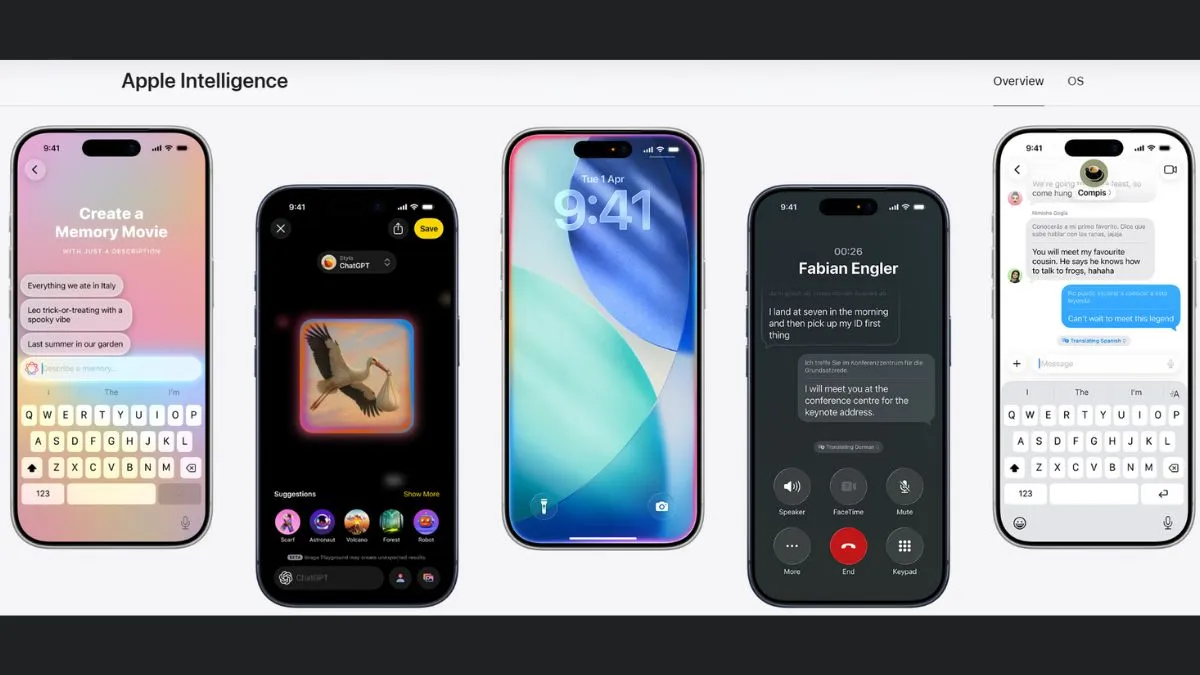
Apple Intelligence is Apple’s own AI system, which was rolled out with iOS 18. It brings in multiple engaging things – like Writing Tools, Notification Summaries, Image Playground, Genmoji, and a smarter Siri. Some people find these handy, but honestly, a lot of users just see them as clutter and would like to shut them down. So, this article will focus on those who would be interested in removing the feature from their existing interface.
But why do some people prefer to turn off Apple Intelligence on their iPhone, iPad or Mac?
There are a few reasons people want to shut it down:
- It takes a lot of storage- up to 7GB gone, just like that.
- Most people do not actually use the AI summaries or images.
- Sometimes those summaries are not accurate.
- Some users just feel better with fewer AI processes running in the background.
And to be real, not many people upgrade their phone just for new AI features.
Which devices work with Apple Intelligence?
You will only see it on certain devices:
- iPhone 15 Pro or newer (so, iPhone 16 and 17 too)
- iPhone Air
- Any Mac or iPad with an M-series chip
- The latest iPad mini
Check how much space the Apple Intelligence is using on your device.
Thinking of turning off the Apple Intelligence? But first, you need to check its storage details. For this, you need to follow the steps below:
- Head to Settings
- Tap General
- Pick iPhone (or iPad) Storage
- Tap iOS / iPadOS
Note: Even after you disable Apple Intelligence, some space might still look reserved, but iOS will free it up if you need it. So, you don't have to stress about this.
How to shut off Apple Intelligence for good
Here’s how you switch it off everywhere:

- Go to Settings (on iPhone or iPad) or System Settings (on Mac)
- Find Apple Intelligence & Siri
- Flip the switch to turn off Apple Intelligence
- Confirm when asked
What will stop working once you switch off the Apple Intelligence feature?
- Writing Tools
- Notification Summaries
- Visual Intelligence
- Genmoji
- Image Playground (the app stays, but you can’t make new stuff)
- ChatGPT with Siri
- Image Wand in Notes
How to turn off just certain features, and not Apple Intelligence altogether
And, if you want to disable any specific features on your Apple device, then follow the steps below:
- Open Settings
- Go to Apps
- Pick the app you want (like Messages)
- Switch off Summarise Messages
Heads up: If it’s Writing Tools you want to turn off, you’ll need to disable Apple Intelligence completely. There’s no way to do it per app.
Block Apple Intelligence through screen time
Another route—use Screen Time to restrict AI stuff:
- Open Settings
- Tap Screen Time
- Go into Content & Privacy Restrictions
- Turn on restrictions
- Tap Intelligence & Siri
- Set Don’t Allow for things like:
- Image Creation (Genmoji, Image Playground)
- Writing Tools
- ChatGPT Extension
Is Apple Intelligence worth it right now?
Well, Apple Intelligence still feels like it’s finding its feet. Some things, like photo Clean Up, really help. Others just seem half-baked. If all these features are more distraction than help, or you want your storage back, turn them off and wait to see how Apple improves things down the line.