- News
- Technology
- iPhone battery dying fast? Try these hidden settings to double your battery life
iPhone battery dying fast? Try these hidden settings to double your battery life
If your iPhone's battery drains quickly and the charge doesn't last long, you don't need to worry anymore; simply change these settings on your iPhone to significantly improve battery life.
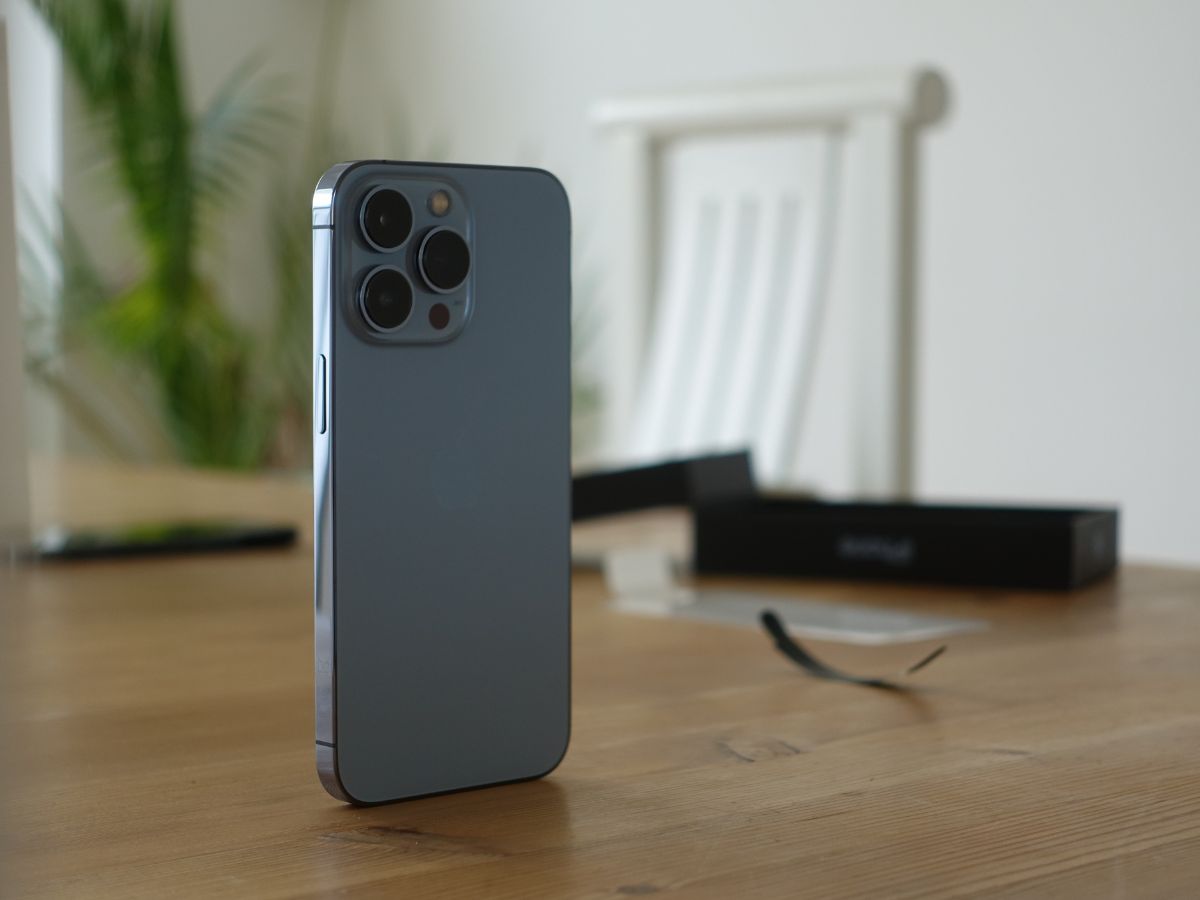
Many iPhone users often have to carry a charger or power bank with them, as they frequently suffer from battery drain. If you're an iPhone user and your battery runs out quickly, you no longer need to worry. We will show you some iPhone settings that can significantly help extend your phone's battery life.
Like Android smartphones, iPhones also have many apps that remain open in the background and consume battery power. Users often ignore these background apps, leading to quick battery drainage. Furthermore, the iPhone has several hidden settings that can both prevent rapid discharge and extend the overall life of the battery.
Methods that will help
1. Manage Background App Refresh
The fact is that most smartphone battery drain is caused by apps running in the background, which causes the battery to deplete quickly even when you are not actively using them. You need to turn off the Background App Refresh feature on your iPhone.
- To do this, go to your iPhone's Settings.
- Under General, tap Background App Refresh.
- Select the apps you want and turn them off. You can choose to keep this feature turned on only for important apps. Turning it off can really help your iPhone's battery last longer.
2. Turn Off Auto-Brightness
Consider turning off features like Auto-Brightness and motion effects. These settings use up power all the time, so if you don't really need them, it's a good idea to switch them off.
- To turn off Auto-Brightness, go to your iPhone's Settings.
- Then, go to Accessibility, and select Display & Text Size.
- Finally, turn off Auto-Brightness.
3. Turn On Reduce Motion
- To manage motion effects, you will need to go back to Settings and Accessibility.
- Tap the Motion option.
- Then, tap Reduce Motion and turn it on. This will reduce visual motion on your phone's display, thereby reducing battery consumption.
4. Disable Raise to Wake
This feature can also save battery. The iPhone has a Raise to Wake feature, which automatically turns on the screen as soon as you lift the phone. Disabling this feature can conserve battery power.
- To do this, go to Settings again.
- Then, go to the Display and Brightness option and tap the Raise to Wake option to turn it off.
ALSO READ: Realme GT 7 Pro gets massive Rs 15,000 discount ahead of GT 8 Pro launch: Where to buy